Reaction Forms
Reaction forms collect structured data from candidates (or other respondents) via a branded, multi-language public form.
| Concept | Meaning |
|---|---|
| Form (template) | Fields, steps, appearance, GDPR, email verification |
| Share link | Published URL for a template (one form → many links) |
| Reaction | One submission — review, accept, or reject |
Navigation: Recruitment → Reaction forms → /dashboard/reaction-forms/
First form
- Go to Recruitment → Reaction forms and click +.
- Name the template, then add fields from the left palette (click or drag onto the canvas).
- Set required fields, appearance (logo/colours), and the main GDPR consent under form settings.
- Save, then open Shared links on the forms list and click Create link.
- Optionally set validity, source, job offer, Hiring Room, and responsible persons → copy the public URL and share it.
- Watch submissions under Candidates → Reactions (or the linked Hiring Room) → Accept or Reject.
Tip: prepare GDPR texts under Settings → GDPR before you publish the first link. Details for the builder, links, and consents are in the sections below.
1. Capabilities
| Capability | Description |
|---|---|
| Profile fields & order | Choose parameters and order |
| Custom fields | When built-in fields are not enough |
| Appearance | Logo, colours, texts |
| 6 languages | SK, CS, EN, RU, UA, DE (+ AI translation helper) |
| Email verification | Optional gate before the form |
| Attachments | CV; general docs; identity documents |
| GDPR | Required consent + optional additional consents |
| Share links | Publish via URL |
| Responsibility | Bell notifications; responsible persons on the link |
| Confirmation email | To the submitter if email exists |
Not (yet): OCR into fields while filling — AI reading of attachments runs on acceptance.
2. How data is stored
- Required fields per template.
- Structure ready to become a candidate profile, or match/enrich an existing one.
- Custom fields → read-only extended info on the candidate card.
- General attachments → profile Documents after accept.
- CV (PDF, DOC, DOCX) → profile CV after accept.
- Identity documents → Identity section (upload or mobile capture; basic quality checks).
- GDPR → agreement attached to the profile after accept.
3. Reactions lifecycle
- Duplicate profile check on each reaction.
- Accept — validations, attachment processing (AI), create or enrich profile; then assign to a Hiring Room and/or start a foreigner process.
- Reject — optional reason; can be undone later.
Where reactions appear
Candidates → Reactions (all reactions):
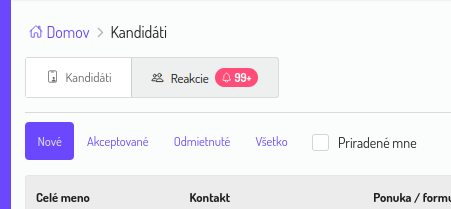
Filters: New / Accepted / Rejected / All · Assigned to me.
Hiring Room → Reactions — when the share link is bound to that room.
Without a Hiring Room on the link, reactions stay in the general Candidates list until accepted and routed.
4. Share links
Forms table column Shared links — click the number:
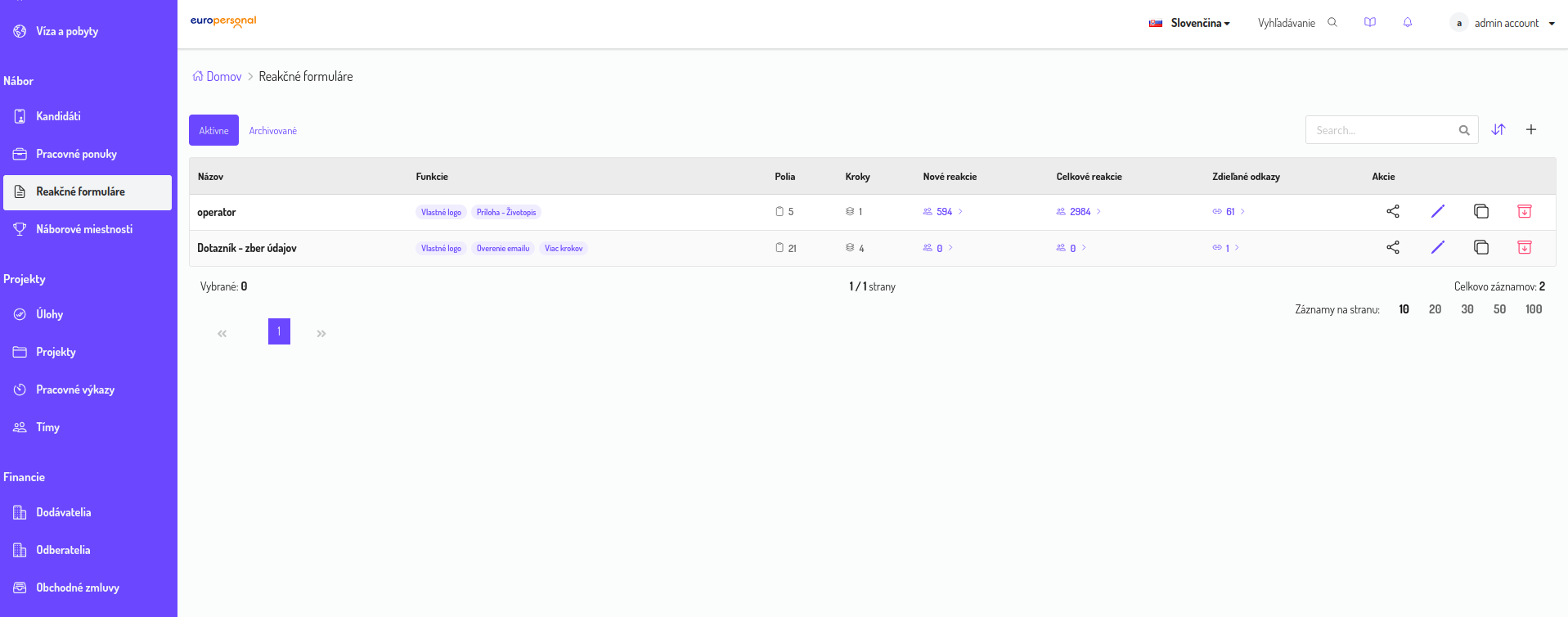
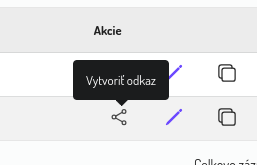
Action Create link:
| Option | Description |
|---|---|
| Validity | Optional end date |
| Source | Categorisation (Settings → hiring sources) |
| Job offer | Optional |
| Hiring Room | Post-accept placement + default room notifications |
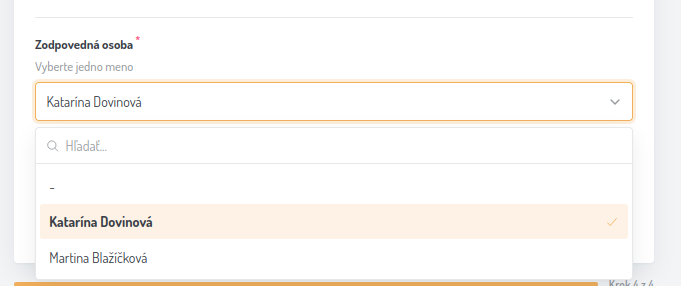
| Responsible persons | Owners; optional “applicant picks one” |
Notification rules
- One responsible person on the link → auto-assigned on every reaction.
- Applicant picks one → bell notification goes to that person only.
- Multiple persons without forced choice → informed per link setup.
- Hiring Room without override → notify recruiters in the room.
Template changes apply to all share links of that form.
5. Form builder
Open Reaction forms → + → interactive editor.
Top: template name · Build / Preview · Save (always save before leaving).
| Area | Role |
|---|---|
| Left | Field palette |
| Center | Form canvas (Form / Pages tabs, steps) |
| Right | Form / step / appearance settings, or field settings |
Field palette & custom fields
Use Add custom field, separators, section headings, profile fields, and attachments (CV, ID, passport, residence card, and similar).
For a selected field, the right panel shows Field settings: display type, required, multi-select, allow custom answer, help text, help link. Labels are editable per language.
Multi-step forms
Use Add step, delete step, and step navigation. Add fields from the left palette (click or drag).
Step settings & languages
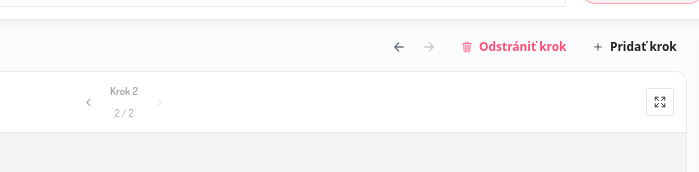
Editing language: EN · SK · CS · UA · RU · DE. Step name, description, show/hide, alignment.
6. Email verification
Enable under Form settings → Email verification.
- Off → share link opens fields directly.
- On → enter email → one-time code → form unlocks.
Turning this off on the template affects all links of that form.
7. GDPR on the form
Form settings
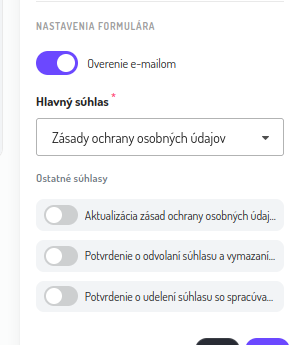
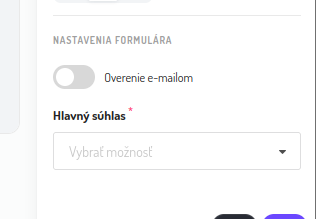
- Main consent (required) — select GDPR document.
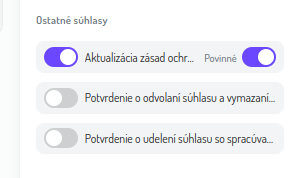
- Other consents — optional toggles; can be marked mandatory.
Candidate-facing consent step
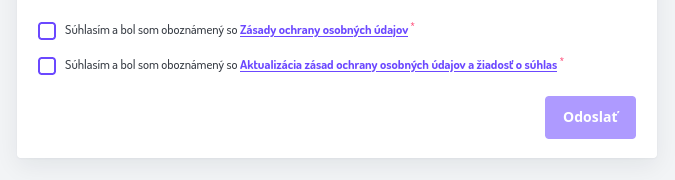
Required consents must be checked before Submit.
GDPR document texts
Manage under Settings → GDPR: name, rich text, languages (EN/SK/CS/UA/RU/DE), type, duration, organisation.
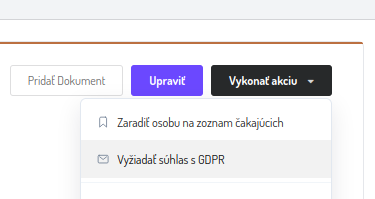
On a candidate profile you can still Request GDPR consent and pick language/text:
8. Public form experience
Public form URL pattern: /form/<share-link-id> (optional ?lang=).
Header typically shows title, validity, and logo. Language switcher is available on each step:
Supported languages: English, Slovak, Czech, Ukrainian, Russian, German.
9. Setup checklist
- Prepare GDPR texts (Settings → GDPR) in needed languages.
- Create/edit the form template (fields, steps, appearance, email gate, consents).
- Create share link(s): source, validity, room, responsible persons.
- Share the URL.
- Monitor Candidates → Reactions and/or Hiring Room → Reactions.
- Accept or reject; after accept assign room / foreigner process as needed.
10. FAQ
Where are forms managed?
Recruitment → Reaction forms (/dashboard/reaction-forms/), with view/manage permission.
Must every link have a Hiring Room?
No. Without a room, reactions appear under Candidates → Reactions only.
Do template changes affect existing links?
Yes — including email verification and field layout.
When does AI read documents?
On acceptance, if the reaction has attachments — not while filling.
Can one form have many links?
Yes (e.g. one per recruiter for ownership and notifications).